
Microsoft PowerPoint vs Keynote: which is better?

Microsoft PowerPoint vs Keynote: which is better?
If you're deciding between Microsoft PowerPoint and Apple Keynote, you're weighing two very different approaches to presentation design. This Keynote vs PowerPoint comparison matters because one tool dominates corporate and educational settings worldwide, while the other comes free on every Mac and is quietly favored by Mac users and designers who prioritize aesthetics.
PowerPoint is the industry standard: comprehensive features, deep Microsoft integrations, and a universally accepted file format. Keynote takes the opposite approach, emphasizing simplicity, cleaner templates, and a design-forward experience. The trade-off is clear: PowerPoint offers depth at the cost of complexity, while Keynote delivers elegance but remains tethered to Apple's ecosystem.
This guide compares these two presentation tools across the criteria that matter most: usability, design tools, automation features, collaboration, pricing, and real-world fit. By the end, you'll know whether to use PowerPoint or use Keynote for your workflow, and whether a third option might help you create visually appealing presentations with less effort.
Tool overviews
What is Microsoft PowerPoint?
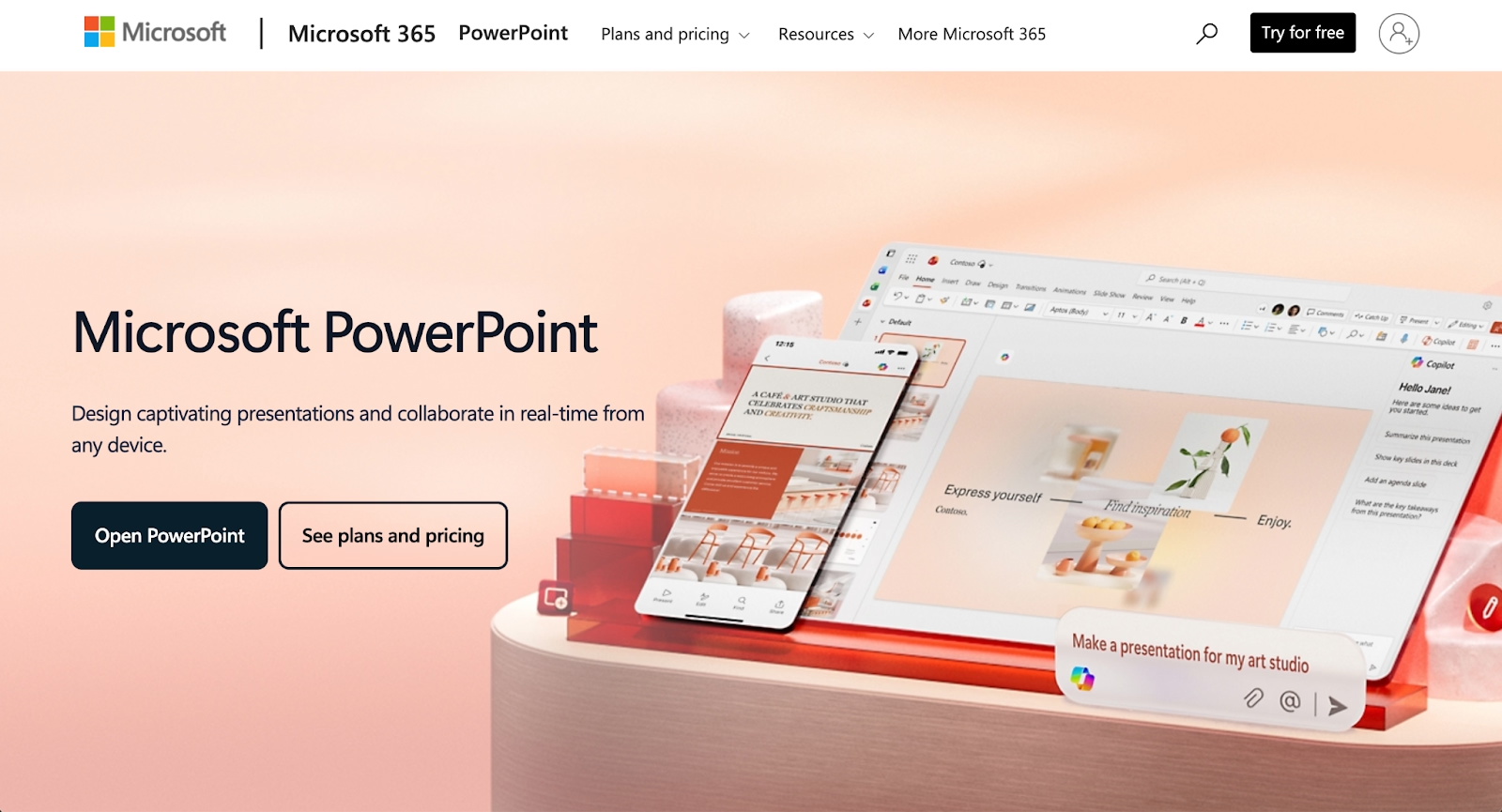
Microsoft PowerPoint is the world's most widely used presentation software, commanding roughly 25% of the presentation app market. Originally developed for Mac in the 1980s before Microsoft acquired it, PowerPoint has evolved into a comprehensive tool for creating, editing, and delivering slide-based presentations across business, education, and personal contexts.
PowerPoint's strength lies in its depth. As part of the Microsoft Office suite alongside other Office apps like Excel and Word, the software offers an extensive array of functions for slide creation, formatting, animations, data visualization, and powerful presentation delivery. With Microsoft 365 integration, users get real-time collaboration, cloud storage, and access to Copilot AI for generating presentation drafts from prompts. The trade-off is complexity: new users often find the ribbon interface overwhelming, and mastering the full feature set takes time. For those starting out, a tutorial can help navigate the extensive formatting options available.
What is Apple Keynote?
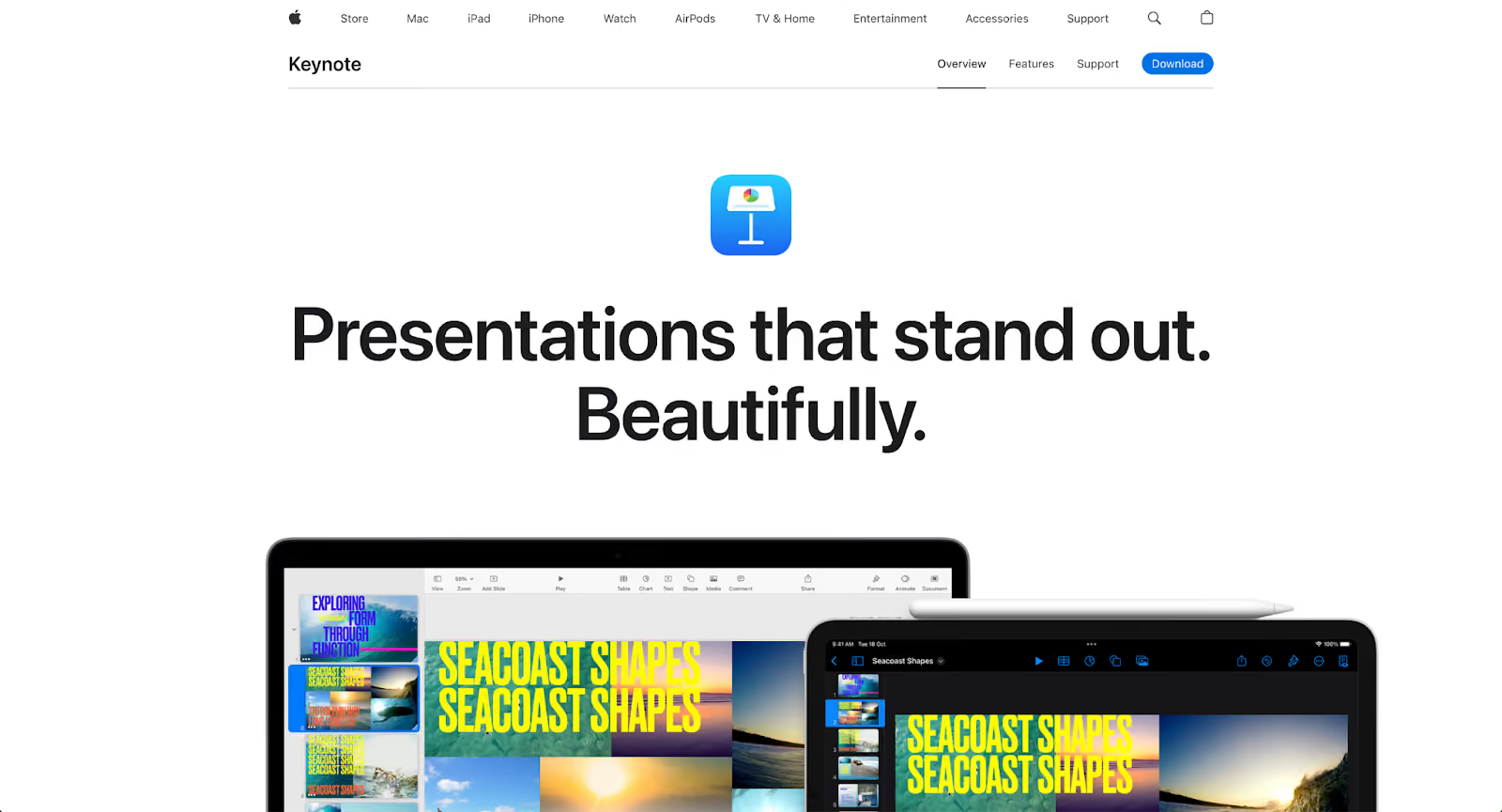
Apple Keynote is a presentation app that comes pre-installed on all Mac, iPad, and iPhone devices. Launched in 2003 as part of Apple's iWork suite, Keynote was designed to offer a cleaner, more intuitive alternative to PowerPoint, with an emphasis on visual polish and ease of use.
Available on macOS and iOS, Keynote offers a user-friendly, uncluttered interface, beautiful built-in themes, and a minimal learning curve. Creating polished Keynote slides takes minutes rather than hours. For Apple users embedded in the Apple ecosystem, Keynote syncs seamlessly across devices via iCloud, enabling smooth workflows between Mac, iPad, and iPhone. The limitation is reach: Keynote presentations don't always translate cleanly to PowerPoint, and the software lacks the advanced features, AI capabilities, and third-party integrations that PowerPoint users take for granted.
Key comparison criteria
The core difference between PowerPoint and Keynote comes down to philosophy. PowerPoint prioritizes feature depth and universal compatibility, assuming users want control over every detail. Keynote prioritizes design elegance and ease of use, assuming users want beautiful results with minimal effort. This philosophical split shapes every aspect of the comparison, from templates and automation to exports and cross-platform sharing.
Ease of use & learning curve
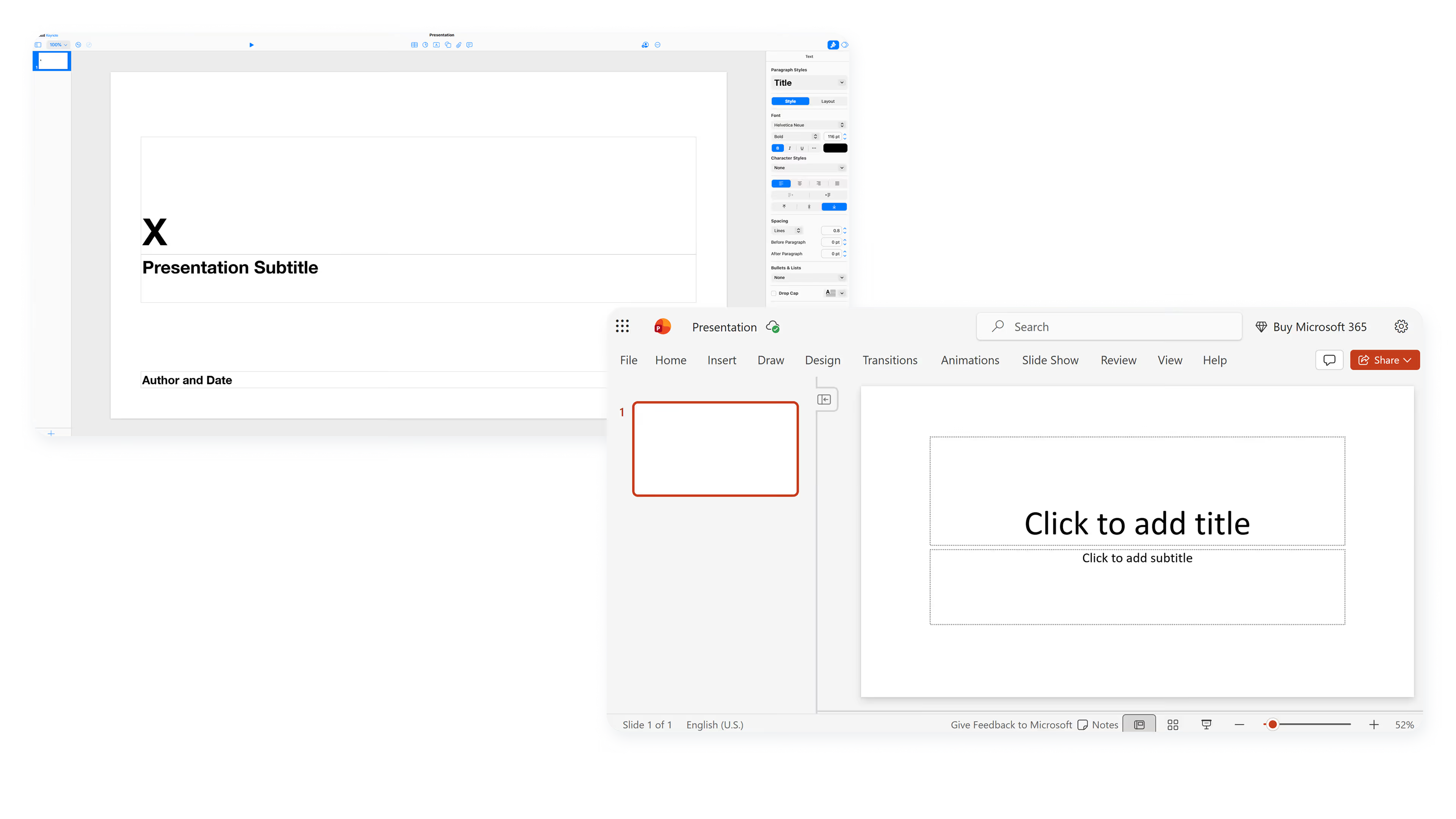
PowerPoint's interface is powerful but dense. The ribbon menu system organizes hundreds of features across multiple tabs, with contextual menus that appear when you select specific elements. For users familiar with Microsoft Office, the toolbar and layout feel consistent. For newcomers building their first PowerPoint presentation, the sheer number of options can slow down the learning process.
Keynote takes the opposite approach. The toolbar is minimal, the menus are straightforward, and most formatting options live in a single sidebar that appears when you select an element. Users can start building presentable slides within minutes, even without prior experience. The trade-off is that some advanced capabilities simply don't exist in Keynote, so there's less to learn because there's less the software can do. Beginners often find Keynote more approachable for creating their first engaging presentations.
Summary: PowerPoint favors users who want full control and are willing to invest time learning the interface; Keynote favors users who want fast, attractive results without complexity.
Templates & format control
PowerPoint ships with a range of built-in PowerPoint templates, though many look dated compared to modern presentation design standards. The real advantage is ecosystem depth: thousands of third-party templates are available online, from free options to professionally designed premium packs. PowerPoint's slide master feature enables global formatting changes across an entire deck, giving users precise control over layouts, fonts, and branding.
Keynote's templates, while fewer in number, are visually superior out of the box. Apple's design team has crafted themes that look polished and modern without requiring customization. The limitation is scope: Keynote's master slide system lacks PowerPoint's depth, and there's no way to make truly global changes across all layouts simultaneously. Users who need strict brand control across complex decks may find Keynote's options limiting.
Summary: PowerPoint handles format control and template ecosystem breadth; Keynote prioritizes design quality over customization depth.
AI features & automation
PowerPoint has embraced AI through Microsoft Copilot, which can generate entire presentation drafts from text prompts, summarize existing content, and suggest design layouts. PowerPoint Designer uses AI to recommend layouts for each PowerPoint slide based on the content you add, helping users create engaging presentations faster. These capabilities position PowerPoint as an AI presentation tool for users who want to accelerate the creation process.
Keynote has no native AI features. There's no prompt-based generation, no AI-assisted design suggestions, and no third-party AI add-ins that integrate directly with the app. Users who want AI capabilities in their Keynote workflow would need to generate content externally and paste it in manually.
Summary: PowerPoint uses AI for content generation and layout suggestions; Keynote offers no AI features.
Design tools, visuals & data visualization
PowerPoint provides extensive design tools and data visualization capabilities. Users can create and customize charts, graphs, tables, and SmartArt diagrams directly within the app. The shape merging feature allows for custom graphic creation, and the formatting options for each element are granular. For data-heavy presentations, PowerPoint handles complexity well, though presenting that data clearly still requires design skill.
Keynote supports charts, tables, and basic data visualization, but with fewer options and less granular control. The user-friendly app excels at making simple content look good automatically; it struggles when users need to display complex datasets or create custom graphics. Keynote's animation capabilities are strong, featuring Magic Move transitions and cinematic effects that often surpass PowerPoint's defaults and rival alternatives like Google Slides.
Summary: PowerPoint handles data visualization and design flexibility; Keynote excels at elegant animations and clean visual defaults.
Interactive elements & audience engagement
PowerPoint supports embedded multimedia including video, audio, hyperlinks, and action buttons that trigger specific behaviors during presentations, giving users control over presentation design and slideshow delivery. For live presentations, users can leverage Presenter View, rehearsal tools, and slide timing features. PowerPoint lacks native polling, quizzes, or real-time audience interaction tools; those require third-party integrations like Mentimeter or Slido.
Keynote offers similar embedding capabilities for media and hyperlinks, with particularly smooth animation transitions during delivery. The app includes a Presenter Display mode and supports Apple Watch integration for remote control. Like PowerPoint, Keynote lacks built-in audience interaction features; engagement tools require external solutions.
Summary: PowerPoint supports comprehensive media embedding and presenter tools; Keynote delivers smooth, visually polished live presentations.
Collaboration features & real-time workflow
PowerPoint's collaboration capabilities have matured significantly through Microsoft 365. Multiple users can edit the same presentation simultaneously with real-time sync, leave comments on specific slides, and track version history. Enterprise features include granular permissions, SharePoint integration, and compliance controls. For teams that need structured workflows with approvals and access management, PowerPoint delivers enterprise-grade real-time collaboration.
Keynote supports real-time collaboration via iCloud, allowing multiple Apple users to edit presentations simultaneously. The experience is smooth within the Apple ecosystem, and the Continuity feature enables users to start on a Mac and continue seamlessly on iPad or iPhone. The limitation is platform dependency: collaboration works best when all participants use Apple devices and iCloud accounts. Teams with mixed Windows and Mac environments may encounter friction.
Summary: PowerPoint emphasizes enterprise collaboration with granular permissions and integrations; Keynote focuses on seamless Apple ecosystem collaboration.
Compatibility & integrations
PowerPoint is the universal standard. PowerPoint files in PPTX and PPT formats open reliably across Windows, Mac, web browsers, and mobile devices. The software integrates with the full Microsoft 365 suite, including OneDrive, Teams, SharePoint, and Outlook. Third-party integrations are extensive, from CRM tools like Salesforce to design platforms and AI add-ins. For organizations already invested in Microsoft's ecosystem, PowerPoint fits naturally into existing workflows.
Keynote's compatibility is more constrained. Keynote files work flawlessly on Apple devices and sync through iCloud, but exporting to PPTX often introduces formatting inconsistencies. Teams that frequently collaborate with non-Apple users may find Keynote's export limitations frustrating. Integration with non-Apple tools is limited.
Summary: PowerPoint fits naturally into cross-platform, enterprise environments; Keynote fits best within Apple-only workflows.
Pricing & free plan
PowerPoint's pricing depends on how you access it. Microsoft 365 subscriptions range from $9.99/month for personal use to $12.99–$19.99/user/month for business plans. A standalone license costs $179 as a one-time purchase but excludes cloud features and regular updates. The web-based version of PowerPoint is free with limited functionality, suitable for basic editing but missing advanced features.
Keynote is free on all Apple devices with no subscription required. The full-featured app comes pre-installed on Mac, iPad, and iPhone, with regular updates from Apple at no additional cost. For Apple users, this represents significant value; for Windows users, Keynote isn't an option at all.
Summary: Both offer accessible entry points, but PowerPoint requires ongoing subscription for full features while Keynote is free for Apple users.
Ideal use cases
PowerPoint and Keynote each serve distinct user profiles well. PowerPoint handles the demands of enterprise presentations, cross-platform collaboration, and data-heavy content. Keynote works best when visual polish matters most and teams operate entirely within Apple's ecosystem.
But some users don't fit neatly into either camp. Teams that need professional presentation design without PowerPoint's complexity, or cross-platform compatibility without Keynote's limitations, often find that Beautiful.ai offers a more balanced approach. Smart Slides handle layout and formatting automatically using built-in design logic (not AI), while AI features help generate content from prompts, giving users speed and polish without the trade-offs of either traditional tool.
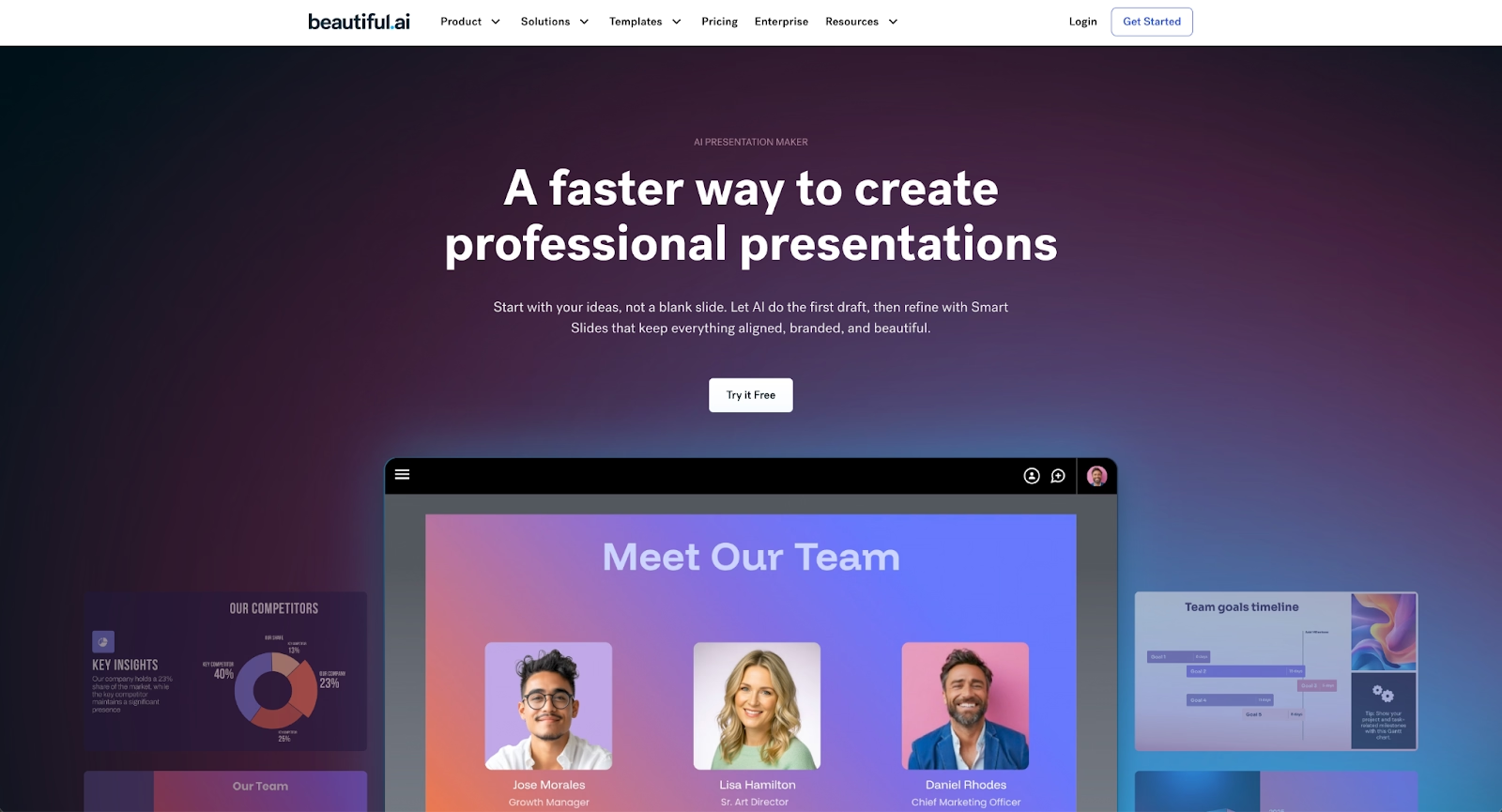
When Beautiful.ai is the better fit
- Teams that need professional, branded presentations without spending hours on manual formatting
- Organizations producing pitch decks, sales presentations, and quarterly reports at scale
- Users who want AI to kickstart content creation while Smart Slides handle design automatically
- Cross-platform teams that need reliable exports to PowerPoint without compatibility issues
- Professionals who value design consistency without the learning curve of advanced formatting tools
When Microsoft PowerPoint is the better fit
- Enterprise teams deeply embedded in the Microsoft 365 ecosystem
- Users who need granular control over every formatting detail and animation
- Organizations with complex data visualization requirements and chart customization needs
- Teams that rely on extensive third-party integrations and add-ins
- Environments where PPTX is the required standard and cross-platform compatibility is non-negotiable
When Apple Keynote is the better fit
- Apple-native teams where all collaborators use Mac, iPad, or iPhone
- Creative professionals and designers who prioritize visual elegance over feature depth
- Personal projects and smaller presentations where Keynote's simplicity accelerates workflow
- Users who want beautiful results quickly without learning a complex interface
- Budget-conscious individuals who benefit from Keynote's zero-cost model on Apple devices
Limitations and trade-offs
Every presentation tool reflects deliberate design choices, and those choices create trade-offs. Understanding where each platform draws the line helps set realistic expectations before committing to a workflow.
Beautiful.ai trade-offs
- Smart Slides offer less pixel-level control than PowerPoint's freeform canvas
- No native offline desktop app; works best with consistent internet access
- Fewer third-party integrations compared to Microsoft's extensive ecosystem
- Learning curve exists for users accustomed to traditional slide-by-slide editing
Microsoft PowerPoint trade-offs
- Complex interface can overwhelm new users and slow down simple tasks
- Default templates often look dated; quality results require customization or third-party templates
- Full features require Microsoft 365 subscription costs
- File bloat and version inconsistencies can occur across different PowerPoint versions
Apple Keynote trade-offs
- Limited to Apple ecosystem; not viable for Windows-only teams
- PPTX exports frequently introduce formatting and layout inconsistencies
- No AI features for content generation or automated design suggestions
- Smaller template library and limited custom shape manipulation compared to PowerPoint
Future roadmap & evolving features
Product direction matters when choosing tools for long-term use. Where each platform is investing signals how well it will serve evolving needs.
Beautiful.ai focus
Beautiful.ai continues to invest in AI-powered content generation and Smart Slide automation. The roadmap emphasizes expanding brand governance tools, improving team collaboration workflows, and strengthening data visualization capabilities. The core vision remains consistent: remove design friction so users can focus on message and story rather than formatting.
Microsoft PowerPoint focus
Microsoft is betting heavily on Copilot AI across the entire Office suite. PowerPoint's roadmap centers on deeper AI integration for content generation, design suggestions, and presentation summarization. Cloud collaboration features continue to expand, with emphasis on enterprise security, compliance, and Teams integration. PowerPoint's trajectory is toward becoming an AI-assisted productivity tool within Microsoft's broader ecosystem.
Apple Keynote focus
Apple's Keynote updates focus on performance optimization, compatibility improvements, and tighter integration with other Apple services. While Apple has invested in AI across its ecosystem, Keynote has not yet received significant AI-powered features for presentation creation. Future development appears focused on refinement and ecosystem cohesion rather than feature expansion.
Final recommendation
PowerPoint and Keynote both deliver capable presentation experiences within their respective domains. PowerPoint is the pragmatic choice for enterprise environments, data-heavy content, and cross-platform teams that need universal file compatibility. Keynote is ideal for Apple-native users who value design elegance and simplicity over feature depth.
For teams that sit between these two extremes, wanting professional design without PowerPoint's complexity or cross-platform reliability without Keynote's limitations, Beautiful.ai offers a balanced alternative. Smart Slides handle layout and formatting automatically, while AI helps generate content from prompts. The result is a faster path from idea to polished presentation without the learning curve of traditional tools or the ecosystem constraints of Apple-only software.
If speed, brand consistency, and design quality matter more than granular control or platform allegiance, exploring Beautiful.ai's free trial may reveal a workflow that fits modern presentation needs better than either legacy option.
Why customers are switching to Beautiful.ai
Beautiful.ai is an AI-powered presentation platform that helps teams create polished, on-brand slides in a fraction of the time, without design skills or manual formatting.
- Design automation built in. Whether you're building pitch decks, reports, or internal presentations, Beautiful.ai’s Smart Slides automatically format content so you never worry about spacing, alignment, or layout again. Add your content, and the design adjusts instantly.
- ️No design experience required. Create professional decks without touching text boxes or manually arranging elements. Choose from Smart Templates and let the AI handle layout decisions, visual hierarchy, and consistency across the entire deck.
- Branding? Already handled. Keep every slide on-brand with your fonts, colors, and logos applied automatically. Beautiful.ai ensures every team member creates presentations that look like they came from a dedicated design team—without extra work.
- Real-time collaboration & team controls. Collaborate directly on the same deck, leave comments, manage permissions, and maintain consistency across team presentations. Perfect for growing teams and cross-functional workflows.
- Faster workflows, fewer revisions. Jump from rough outline to polished presentation in minutes, not hours. Beautiful.ai reduces back-and-forth edits by enforcing on-brand design rules and helping you iterate faster with AI-assisted slide creation.
